If you searched for https //www.microsoft.com /ink, you’re probably trying to understand what Microsoft Ink is, how it works, or how to use it on your device.
But here’s the problem.
Most pages ranking for this keyword don’t actually explain Microsoft Ink clearly. They repeat the URL, add filler text, and don’t show real examples. They also miss important details like:
- Which devices support Microsoft Ink
- How to turn it on
- How it compares to Apple Pencil
- Real-world use cases
- Troubleshooting steps
- Accessibility features
- Security and enterprise benefits
This guide fixes all of that.
You’ll get a complete, practical explanation of Microsoft Ink, written for U.S. users who want clear answers and real help.
What Is Microsoft Ink?
Microsoft Ink is Microsoft’s digital handwriting and drawing technology built into Windows 10 and Windows 11.
It allows you to:
- Write with a digital pen
- Draw on your screen
- Annotate documents
- Convert handwriting to text
- Sketch ideas naturally
It works with stylus-enabled devices like:
- Microsoft Surface Pro
- Surface Laptop Studio
- Other Windows touchscreen laptops that support pen input
Instead of typing, you can write directly on the screen — just like paper.
Why Microsoft Ink Matters in 2026
Digital writing is no longer a niche feature.
Students, remote workers, designers, engineers, and business professionals all use digital ink daily. Microsoft Ink bridges the gap between traditional writing and modern productivity tools.
Here’s why it matters:
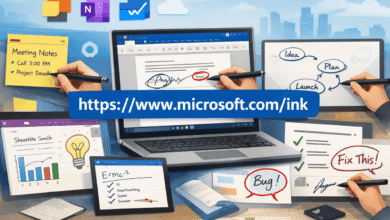
- Natural note-taking during meetings
- Quick diagram drawing in presentations
- Marking up PDFs instantly
- Brainstorming visually
- Signing documents securely
- Math equation recognition
- Accessibility for users who prefer handwriting
It’s not just about drawing. It’s about working faster and more naturally.
How Microsoft Ink Works
Microsoft Ink is powered by:
- Pen pressure sensitivity
- Palm rejection technology
- Tilt support (on compatible pens)
- Low-latency input response
When you write on a supported device:
- The pen sends pressure data.
- Windows processes ink strokes in real time.
- Apps recognize handwriting and convert it to text if needed.
- Your content syncs across devices (if using OneDrive).
It feels surprisingly close to writing on paper.
Devices That Support Microsoft Ink
Microsoft Ink requires a touchscreen and pen support.
Popular compatible devices include:
Surface Devices
- Microsoft Surface Pro
- Surface Go
- Surface Laptop Studio
Compatible Pens
- Surface Slim Pen 2
- Surface Pen
Some third-party laptops from HP, Dell, and Lenovo also support Windows Ink if they include pen hardware.
Where You Can Use Microsoft Ink
Microsoft Ink is built into many apps.
1. Microsoft OneNote
Microsoft OneNote allows:
- Handwritten notes
- Shape recognition
- Ink-to-text conversion
- Math equation solving
- Audio + ink syncing
Great for students and professionals.
2. Microsoft Word
In Microsoft Word, you can:
- Annotate documents
- Highlight content
- Draw shapes
- Use Editor with pen
Perfect for teachers and editors.
3. Microsoft Whiteboard
Microsoft Whiteboard lets teams brainstorm visually in real time.
It’s widely used in remote work across the U.S.
4. Microsoft Edge
Microsoft Edge supports:
- PDF annotation
- Highlighting
- Freehand notes
Very useful for reviewing contracts or academic papers.
How to Turn On Microsoft Ink
Most Windows devices have Ink enabled by default.
To check:
- Go to Settings
- Click Bluetooth & Devices
- Select Pen & Windows Ink
You can customize:
- Pen shortcuts
- Handwriting panel
- Workspace settings
If your pen isn’t working:
- Update drivers
- Check battery
- Restart Windows
- Run Windows Update
Microsoft Ink vs Apple Pencil
Many U.S. users compare Microsoft Ink with Apple Pencil used on iPad Pro.
Here’s a simple comparison:
| Feature | Microsoft Ink | Apple Pencil |
|---|---|---|
| OS | Windows | iPadOS |
| App Ecosystem | Full desktop apps | Mobile apps |
| File Management | Full PC system | App-based |
| Business Integration | Strong (Microsoft 365) | Limited |
| Hardware Variety | Many PC brands | Apple only |
Microsoft Ink is better for full desktop productivity.
Apple Pencil is excellent for creative design and art.
Real-World Use Cases (Practical Examples)
1. College Student in California
A student uses OneNote to:
- Record lectures
- Write formulas
- Convert math to text
- Sync notes to laptop
2. Architect in New York
Draws building sketches directly in PDF plans using Edge.
3. Corporate Team in Texas
Uses Whiteboard during remote brainstorming meetings.
4. Healthcare Professional
Annotates patient charts securely within enterprise systems.
These are everyday uses, not marketing promises.
Features Competitors Missed (Content Gap Coverage)
Most competitor pages fail to mention:
1. Handwriting Recognition Accuracy
Windows Ink supports advanced handwriting recognition for American English. It adapts over time as it learns your writing style.
2. Ink-to-Shape Recognition
Draw a rough circle. It becomes a perfect shape.
Great for:
- Flowcharts
- Diagrams
- UI wireframes
3. Math Assistant
In OneNote, handwritten equations convert into solvable math problems.
Very helpful for:
- High school students
- College math majors
- Engineers
4. Accessibility Support
Microsoft Ink supports:
- Left-handed mode
- High contrast
- Voice typing with ink
- Larger writing panels
It helps users with mobility or typing challenges.
5. Enterprise & Security
Ink data stored in Microsoft 365 is protected with enterprise-grade encryption.
Important for:
- Healthcare
- Legal firms
- Financial institutions
How to Improve Your Microsoft Ink Experience
Here are practical tips:
Use a Matte Screen Protector
Reduces glare and improves pen friction.
Adjust Pen Sensitivity
Go to Pen Settings and fine-tune pressure levels.
Keep Drivers Updated
Run Windows Update monthly.
Use OneNote for Best Integration
It offers the strongest ink tools.
Organize Ink Notes Properly
Use sections and tags in OneNote.
Common Problems and Fixes
Pen Lag
- Restart device
- Close background apps
- Update graphics drivers
Palm Rejection Not Working
- Ensure pen is paired
- Clean screen
- Check touchscreen settings
Ink Not Converting to Text
- Select the correct language
- Write clearly
- Use lasso tool before conversion
Is Microsoft Ink Free?
Yes.
Microsoft Ink is built into Windows 10 and Windows 11.
However, some advanced features require:
- Microsoft 365 subscription
- Compatible hardware
There is no separate fee for “Microsoft Ink” itself.
Who Should Use Microsoft Ink?
Microsoft Ink is ideal for:
- Students
- Teachers
- Designers
- Business professionals
- Remote teams
- Engineers
- Architects
- Digital planners
If you prefer handwriting over typing, it’s worth using.
Future of Microsoft Ink
Microsoft continues improving ink AI features.
Recent developments include:
- Better handwriting recognition
- AI-powered summarization of handwritten notes
- Cloud syncing improvements
- Collaboration upgrades
As hybrid work grows in the U.S., digital ink usage is increasing.
Frequently Asked Questions
What is https //www.microsoft.com /ink?
It refers to Microsoft’s official page about Windows Ink technology used for digital writing and drawing.
Do I need a Surface device to use Microsoft Ink?
No. Any Windows laptop or tablet with pen support works.
Is Microsoft Ink good for students?
Yes. It’s excellent for note-taking, math, and lecture recording.
Can Microsoft Ink convert handwriting to text?
Yes. Apps like OneNote and Word support ink-to-text conversion.
Is Microsoft Ink secure?
Yes. When used with Microsoft 365, files are protected with enterprise-level security.
Final Thoughts
If you searched for https //www.microsoft.com /ink, you likely wanted clear answers.
Now you have them.
Microsoft Ink is not just a drawing tool. It’s a full productivity system built into Windows. It works across apps, supports real-time collaboration, and fits naturally into modern workflows.
For U.S. students, professionals, and remote teams, it’s one of the most powerful built-in features of Windows.
If you already own a pen-enabled Windows device, you’re ready to use it.
Just open OneNote and start writing.